
Windows Terminal

To install Windows terminal without going through the Store

Download the software with this command in powershell:

Invoke-WebRequest -Uri https://github.com/microsoft/terminal/releases/download/v1.7.1091.0/Microsoft.WindowsTerminal_1.7.1091.0_8wekyb3d8bbwe.msixbundle -outfile Microsoft.WindowsTerminal_1.7.1091.0_8wekyb3d8bbwe.msixbundle

Install the package with this

Add-AppxPackage -Path .\Microsoft.WindowsTerminal_1.7.1091.0_8wekyb3d8bbwe.msixbundle

Works fine on Windows Server 2022 ! (Will not autoupdate i think….. who knows…)
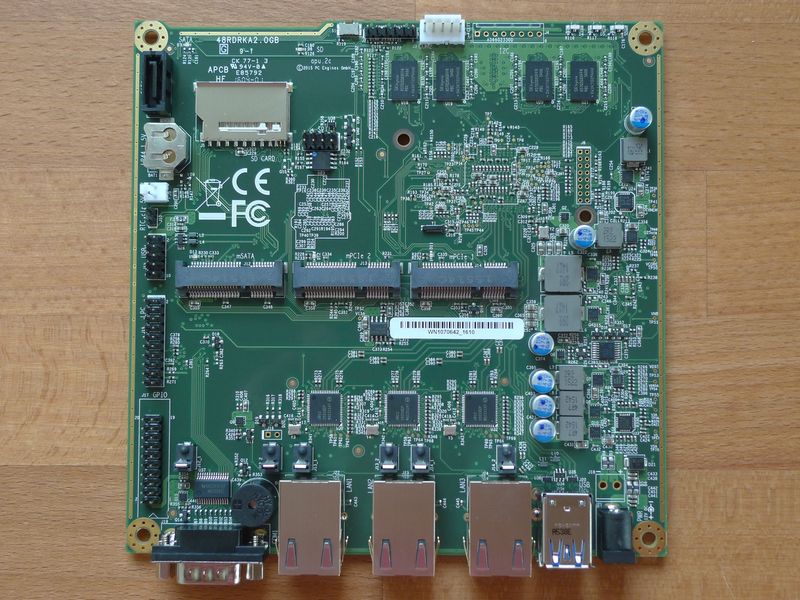
PcEngine – APU – Firmware flash

Justa reminder and links how to flash the Firmware of APUs from https://www.pcengines.ch/

* Enter Console of pfsense.
* Install flashrom packet -> pkg install -y flashrom
* Collect new Firmware from Pcengines site -> https://pcengines.github.io/ with
the command fetch.
Fetch -1 https://3mdeb.com/open-source-firmware/pcengines/apu1/apu1_v4.15.0.3.rom
* Flash the Rom image
APU1:
flashrom -w apu1_v4.8.0.3.rom -c ”MX25L1605A/MX25L1606E/MX25L1608
Add -p internal:boardmismatch=force to force the board if its unrecognized.

APU2 and above:
flashrom -w coreboot.rom -p internal

Test the bios version with this command:
dmidecode -s bios-version


Move Data/logfiles of a Live SQL Server to new location

Sometimes its needed to be able to move a log file etc on a live and running instance.
To do so use the Managementstudio to run some SQL scripts.

ALTER DATABASE "AI2018_Inventor IDF"  
MODIFY FILE (NAME ="AI2016_Inventor IDF_log", FILENAME = 'E:\DatabaseLogfiles\AI2018_Inventor IDF_log.ldf');

-- Set database to online too try again of you forgott to move the file ;)
-- User the full samt of the service account nt Service\MSSSQL$instance... for folder rights...
ALTER DATABASE Vault IDF SET ONLINE;


-- Verify file location and status!
SELECT name, physical_name AS NewLocation, state_desc AS OnlineStatus
FROM sys.master_files  
WHERE database_id = DB_ID(N'Vault')  
GO

Userrights might be a issue and just to remember:
When using the default service account and you need to give it new folder rights the syntax for adding the account is ”NT Service\Accountname”

Windows Subsystem for Linux – WSL

Quick and dirty way to install WSL in Windows 10 2004->

Enable ”Windows Subsystem for Linux”
dism.exe /online /enable-feature /featurename:Microsoft-Windows-Subsystem-Linux /all /norestart
dism.exe /online /enable-feature /featurename:VirtualMachinePlatform /all /norestart

Reboot!!!

Set WSL version to use
wsl –set-default-version 2

Update the linux cernel…
https://wslstorestorage.blob.core.windows.net/wslblob/wsl_update_x64.msi

Ubuntu 20.04 LTS
https://www.microsoft.com/store/apps/9n6svws3rx71

start https://docs.microsoft.com/en-us/windows/wsl/wsl2-kernel

Migrate DHCP

Just a quick reminder on how to quickly move a Microsoft DHCP server.

Export with
netsh dhcp server export backup.txt

Import on new server with
netsh dhcp server import

dont forgett to ”Authorize” correct server.

Powershell way 🙂

DHCP Migration/Move to new Microsoft Server

Run this on the destination server..

#

$SourceServer = ”vdc01.byggkon.local”
$Sourceip =”192.168.52.10″
$DestServer =”vdc02″
$Destip =”192.168.52.11″

$WorkDir = ”c:\DHCPMigration”
if (-not (test-path $workdir)) {md $workdir}

Export config from old server

Export-DhcpServer -ComputerName $SourceServer -File ”$Workdir\SourceDHCPScopeData.xml” -Force

Stop OLD DHCP Server – decommision

Stop-Service -InputObject $(Get-service -ComputerName $SourceServer -Name DHCPServer) #Stop service on Source
set-service -InputObject $(Get-service -ComputerName $SourceServer -Name DHCPServer) -StartupType disabled #Disable Service on Source
Remove-DhcpServerInDC -DnsName $SourceServer -IPAddress $Sourceip # Deauthorize in AD

Importera den nya

Import-DhcpServer -ComputerName $DestServer -File ”$Workdir\SourceDHCPScopeData.xml” -BackupPath $workdir
Add-DhcpServerInDC -DnsName $DestServer # Authorize scope

Get-DhcpServerInDC

VSS – Volume Shadow Copy… the Old friend ?!

Vss

On every windows machine there seems to be people ignoring the fact that all application critical backups often use this old Gem from Microsoft.

This like this pop upp all the time ” We dont care about it we use Weeam for backups…” :-/
(For you who didnt get it… Weeam and almost every other Windows backup software uses the WSS all the time internally to make application aware backups… (and that wahts you want)

Wss can and is so very oftern the caus of the backup failure that happends.
Here i collect som good commands that i use to troubleshoot the WSS. Enjoy!

To find all writers in the system AND GET ITS STATUS!
vssadmin list writers

To get all present ”shadows”
vssadmin list shadows

To list all shadowstorage present and how they might be limited
vssadmin list shadowstorage

To Delete all present Shadows
vssadmin delete shadows /for=c: /all

Remove all shadows on ALL volumes..
vssadmin delete shadows /all

To manually create a new shadow
vssadmin create shadow /for=C:

To delete the backup catalog
wbadmin delete catalog

Windows 10 Shell Commands

Windows 10 Shell commands:

  1. “shell:AccountPictures”
    Note: this command accesses the account pictures folder you have in your Windows 10 device.
  2. “shell:AddNewProgramsFolder”
    Note: Adds a new program folder.
  3. “shell:Administrative Tools”
    Note: Accesses administrative tools folder.
  4. “shell:AppData”
    Note: Accesses AppData folder in the Windows 10 system.
  5. “shell:Application Shortcuts”
    Note: Accesses Application Shortcuts folder.
  6. “shell:AppsFolder”
    Note: Accesses the Apps Folder.
  7. “shell:AppUpdatesFolder”
    Note: Accesses the Apps updates folder.
  8. “shell:Cache”
    Note: Accesses the Cache folder.
  9. “shell:Camera Roll”
    Note: Access camera roll folder.
  10. “shell:CD Burning”
    Note: Accesses the temporary burn folder.
  11. “shell:ChangeRemoveProgramsFolder”
    Note: Accesses the Remove/Change program folder.
  12. “shell:Common Administrative Tools”
    Note: Accesses the Administrative Tools folder.
  13. “shell:Common AppData”
    Note: Accesses the Common AppData folder.
  14. “shell:Common Desktop”
    Note: Accesses the public desktop folder.
  15. “shell:Common Documents”
    Note: Accesses Public Documents folder.
  16. “shell:Common Programs”
    Note: Accesses Programs folder.
  17. “shell:Common Start Menu”
    Note: Accesses the start menu folder.
  18. “shell:Common Startup”
    Note: Accesses Startup folder situated in t he Windows 10 system.
  19. “shell:Common Templates”
    Note: Accesses “Common Templates” folder.
  20. “shell:CommonDownloads”
    Note: Accesses Downloads folder.
  21. “shell:CommonMusic”
    Note: Accesses the music folder.
  22. “shell:CommonPictures”
    Note: Accesses “Pictures” folder.
  23. “shell:CommonRingtones”
    Note: Accesses the ringtones folder.
  24. “shell:CommonVideo”
    Note: Accesses the public “Video” folder.
  25. “shell:ConflictFolder”
    Note: Accesses the “Conflict” folder in the Windows 10 system.
  26. “shell:ConnectionsFolder”
    Note: Opens up the connections folder
  27. “shell:Contacts”
    Note: Opens the Contact folder
  28. “shell:ControlPanelFolder”
    Note: Opens the Control panel folder.
  29. “shell:Cookies”
    Note: Opens the Cookies folder.
  30. “shell:CredentialManager”
    Note: Opens the Credential manager feature.
  31. “shell:CryptoKeys”
    Note: Opens up the Crypto keys folder
  32. “shell:CSCFolder”
    Note: Opens the CSC Folder.
  33. “shell:Desktop”
    Note: Opens up the Desktop folder.
  34. “shell:Device Metadata Store”
    Note: Opens the metadata store folder.
  35. “shell:DocumentsLibrary”
    Note: Opens the Documents Library folder
  36. “shell:Downloads”
    Note: Opens the Downloads folder
  37. “shell:DpapiKeys”
    Note: Opens the DpapiKeys folder
  38. “shell:Favorites”
    Note: Opens the Favorites folder.
  39. “shell:Fonts”
    Note: Opens the Fonts folder.
  40. “shell:Games”
    Note: Opens the Games folder.
  41. “shell:GameTasks”
    Note: Opens the Game Tasks folder
  42. “shell:History”
    Note: Opens the History folder
  43. “shell:HomeGroupCurrentUserFolder”
    Note: Opens the HomeGroup folder for the current user.
  44. “shell:HomeGroupFolder”
    Note: Opens HomeGroup folder.
  45. “shell:ImplicitAppShortcuts”
    Note: Opens the Implicit Apps shortcut folder.
  46. “shell:InternetFolder”
    Note: Opens Internet Folder.
  47. “shell:Libraries”
    Note: Opens Libraries folder.
  48. “shell:Links”
    Note: Opens the Links folder.
  49. “shell:Local AppData”
    Note: Opens Local AppData folder.
  50. “shell:LocalAppDataLow”
    Note: Opens Local AppDataLow folder.
  51. “shell:LocalizedResourcesDir”
    Note: Opens LocalizedResources folder.
  52. “shell:MAPIFolder”
    Note: Opens MAPI folder.
  53. “shell:MusicLibrary”
    Note: Opens LusicLibrary folder.
  54. “shell:My Music”
    Note: Opens My Music folder.
  55. “shell:My Video”
    Note: Opens My Video folder.
  56. “shell:MyComputerFolder”
    Note: Opens MyComputer folder.
  57. “shell:NetHood”
    Note: Opens NetHood folder.
  58. “shell:NetworkPlacesFolder”
    Note: Opens NetworkPlaces folder.
  59. “shell:OEM Links”
    Note: Opens OEM Links folder.
  60. “shell:OneDrive”
    Note: Opens OneDrive folder in Windows 10
  61. “shell:Original Images”
    Note: Opens Original Images folder.
  62. “shell:Personal”
    Note: Opens Personal folder.
  63. “shell:PhotoAlbums”
    Note: Opens PhotoAlbums folder.
  64. “shell:PicturesLibrary”
    Note: opens PicturesLibrary folder.
  65. “shell:Playlists”
    Note: Opens Playlists folder.
  66. “shell:PrintersFolder”
    Note: Opens Printer folder.
  67. “shell:PrintHood”
    Note: Opens PrintHood folder.
  68. “shell:Profile”
    Note: Opens Profile folder.
  69. “shell:ProgramFiles”
    Note: Opens ProgramFiles folder.
  70. “shell:ProgramFilesCommon”
    Note: Opens ProgramFilesCommon folder.
  71. “shell:ProgramFilesCommonX64”
    Note: Opens ProgramFilesCommonX64 folder.
  72. “shell:ProgramFilesCommonX86”
    Note: Opens ProgramFilesCommonX86 folder.
  73. “shell:ProgramFilesX64”
    Note: Opens ProgramFilesX64 folder.
  74. “shell:ProgramFilesX86”
    Note: Opens ProgramFilesX86 folder.
  75. “shell:Programs”
    Note: Opens Programs folder.
  76. “shell:Public”
    Note: Opens Public folder.
  77. “shell:PublicAccountPictures”
    Note: Opens PublicAccountPictures folder.
  78. “shell:PublicGameTasks”
    Note: Opens PublicGameTasks folder.
  79. “shell:PublicLibraries”
    Note: Opens PublicLibraries folder.
  80. “shell:Quick Launch”
    Note: Opens Quick Launch folder.
  81. “shell:Recent”
    Note: Opens up recent items folder
  82. “shell:RecordedTVLibrary”
    Note: Opens up recorder file in the Windows 10 system
  83. “shell:RecycleBinFolder”
    Note: Opens the system Recycle Bin folder
  84. “shell:ResourceDir”
    Note: Opens up the Resource folder
  85. “shell:Retail Demo”
    Note: Opens up Demo folder
  86. “shell:Ringtones”
    Note: Opens up the Ringtones folder in Windows 10
  87. “shell:Roamed Tile Images”
    Note: Opens up the Roamed Tile images folder
  88. “shell:Roaming Tiles”
    Note: Opens the Roaming Tiles folder
  89. “shell:SavedGames”
    Note: It opens the SavedGames folder you have in the Windows 10 system
  90. “shell:Screenshots”
    Note: Opens the Screenshots folder
  91. “shell:Searches”
    Note: Opens the Search folder.
  92. “shell:SearchHistoryFolder”
    Note: Opens the Search History folder you have in the system.
  93. “shell:SearchHomeFolder”
    Note: Opens the Search Home folder.
  94. “shell:SearchTemplatesFolder”
    Note: Opens the Search templates folder.
  95. “shell:SendTo”
    Note: Opens the SendTo folder.
  96. “shell:SkyDriveCameraRoll”
    Note: Opens the SkyDriveCameraRoll folder.
  97. “shell:SkyDriveMusic”
    Note: Opens the SkyDriveMusic folder.
  98. “shell:SkyDrivePictures”
    Note: Opens the SkyDrivePictures folder.
  99. “shell:Start Menu”
    Note: Opens up the Start menu folder.
  100. “shell:StartMenuAllPrograms”
    Note: Opens the AllPrograms folder you have in the start menu.
  101. “shell:Startup”
    Note: Opens the Startup folder.
  102. “shell:SyncCenterFolder”
    Note: Opens the SyncCenter folder.
  103. “shell:SyncResultsFolder”
    Note: Opens the SyncResults folder.
  104. “shell:SyncSetupFolder”
    Note: opens the SyncSetup folder.
  105. “shell:System”
    Note: Opens the System folder.
  106. “shell:SystemCertificates”
    Note: Opens the SystemCertificates folder.
  107. “shell:SystemX86”
    Note: Opens SystemX86 folder.
  108. “shell:Templates”
    Note: Opens the Templates folder.
  109. “shell:ThisPCDesktopFolder”
    Note: Opens the ThisPCDesktop folder.
  110. “shell:User Pinned”
    Note: Opens User pinned folder.
  111. “shell:UserProfiles”
    Note: Opens the user profiles folder.
  112. “shell:UserProgramFiles”
    Note: Opens Program Files folder.
  113. “shell:UserProgramFilesCommon”
    Note: Opens Program Files Common folder.
  114. “shell:UsersFilesFolder”
    Note: Opens the Files folder from a specific user you are logged in with.
  115. “shell:UsersLibrariesFolder”
    Note: Opens the Libraries folder for a specific user.
  116. “shell:VideosLibrary”
    Note: Opens Video library folder.
  117. “shell:Windows”
    Note: Opens the “Windows” folder.

Add azuread user as local admin

When setting up a local machine using cloudaccount like azure and the machine gets a new user they are not often made local administrators of the machine.

To fix this the following needs to be done.

#1 Gain local admin rights (somehow…)
#2 Determin the account name with the command ”whoami”
#3 with localadmin right from console run the following command

English:
Net localgroup Administrators /add ”AzureAD\<users office 365 email address>”
Swedish:
Net localgroup Administratörer /add ”AzureAD\<users office 365 email address>”


Office URI scheme – ms-excel:ofe|u|https://

Detaljerad info :
https://docs.microsoft.com/en-us/office/client-developer/office-uri-schemes

Excel:
Öppna online:
https://sharepoint.com/shared document/excel.xlsx?Web=1
Öppna i ”tjock klient”
ms-excel:ofe|u|https://sharepoint.com/shared documents/excel.xlsx

Microsoft Word File
Sharepoint’s default shared link is:

1Online https://sharepoint.com/shared document/word.docx
Excel: ms-word:ofe|u|https://sharepoint.com/shared document/word.docx